Wednesday, 7 March 2012

PC Maintenance Class 18


Tonight’s class we are looking at the Windows Service Packs, and why you should install them.

A service pack (SP) is a Windows update, often combining previously released updates, that helps make Windows more reliable. Service packs, which are provided free of charge on this page, can include security and performance improvements and support for new types of hardware. Make sure you install the latest service pack to help keep Windows up to date. Service packs take about 30 minutes to install, and you'll need to restart your computer about halfway through the installation.

The recommended (and easiest) way to get service packs is to turn on Windows Update for Windows 7 and Windows Vista, or Automatic Updates for Windows XP, and let Windows notify you when the service packs you need are ready to install. Turning on Automatic Updating is quick and easy, and it saves you time and disk space.

The latest service pack for Windows 7 is Service Pack 1 (SP1).
Those still using Vista, the latest service pack is Service Pack 2 (SP2). To install Windows Vista SP2, you must first have SP1 installed. Finally those using Windows XP, latest service pack for your computers is Service Pack 3 (SP3). To install Windows XP SP3, you must first have SP1a or SP2 installed. If you are running an older version of Windows – get with the times!!

Microsoft has just released the final version of Service Pack 1 for Windows 7, but for those using Windows 7 should you drop everything and go through the process of installing it? Where can you get it? Here are some answers for you.

If you’ve never installed a service pack before, it’s just a big collection of fixes and changes for your operating system, bundled into a big fat download to make it more convenient if you reinstall—if you’ve kept Windows updated, it should have most of the fixes already installed through Windows Update.

Where Do You Download It?

While you can download the service pack manually from the Microsoft Download site, you should probably just go through Windows Update and select the optional SP1 update from there, since it’ll only download exactly what you need.

It’s in Windows Update? Will I Get it Automatically?

Nope. It’s an optional update (at this point) in Windows Update, so you’ll only get it if you choose to install it.

Does This Make You More Secure?

If you haven’t installed anything off Windows Update in a while, first, shame on you! It’s important to keep yourself updated! Also, this release is essentially a big fat roundup of all the security fixes and bugfixes since Windows 7 was released, combined with a few extra bits of functionality. If you have Windows Update set to automatic, the service pack will not make you more secure.

How Long Does It Take to Install?

The installation time isn’t terribly long, about 30 minutes, but depending on your internet connection, it’ll take quite a while to download. Your best bet is to start the install and then walk away for a while.

Should I Drop Everything and Install it Today?

Not unless you’re bored or you haven’t run updates in a long time. There’s very little in terms of new features, and you’d be better off waiting until the download rush is over. There’s also the possibility of problems, so you might want to wait.

New Features in Service Pack 1

There’s not a ton of great new stuff in SP1, at least from the perspective of the end user. Here’s the quick list of stuff that might maybe matter to you:

  • Improved HDMI audio device performance: there’s a small update that helps reliability of HDMI audio devices after rebooting. This is listed as a feature in the release notes, but really feels like a bug fix.
  •  Corrected behaviour when printing mixed-orientation XPS documents: If you’re trying to print XPS documents that have landscape and portrait pages in the same document, now they will print correctly. All 5 of you can now rejoice.
  • Change to behaviour of “Restore previous folders at logon” functionality: If you used the “Restore previous folders at logon” feature in Folder Options, the folders would restore into a cascaded set of windows. Now they will restore to where they were.
  • Support for Advanced Vector Extensions (AVX): supports a newer processor extension that improves performance for floating point intensive applications.
  • Improved Support for Advanced Format (512e) Storage Devices: hard drive manufacturers are transitioning to a new 4KB physical sector size, and now Windows 7 supports this better.


PC Maintenance Class 17

Tonight we are examining the Blue Screen of Death!


What is blue screen of death (also named bsod, stop errors etc.) What are the major reasons why it occurs.


Most of us have know about the blue screen of death (BSOD).

The Blue Screen of Death (also known as a stop error, BSoD, bluescreen, or Blue Screen of Doom) , or maybe more properly the 'Windows stop message' occurs when Windows detects a trouble or error from where it cannot recover. The operating system halts and diagnostic details are shown on a blue screen.

There are many causes for this error: Bad dll, incorrect device drivers, bad memory, damaged windows registry, etc. This consistent, despite the fact that less so in newer operating systems, error occurs whenever Windows senses an application, hardware or driver error that will not allow it to continue operating properly. This means that, it occurs quite frequently, for many forms of reasons.


Usually, if you are lucky, the issue will resolve itself with just a simple reboot and you may probably never need to bother about it again. More typically though, the BSOD is a harbinger of trouble and you could end up facing with another and another, In Windows System, stop messages generally take one among five forms:

1. Software program errors during Windows operation. Software or device drivers installed in your computer might have errors or problems which cause a stop error, either constantly or under certain conditions.

2. Hardware errors during Windows operation. In case a hardware device malfunctions or is removed during the operation of Windows, or if your hardware doesn't fully support the operations that XP expects it to support, a hardware stop error will occur. Outdated BIOS information on older computers may also matter.

3. Installation errors. The Windows installation process is regarded as the most sensitive time for hardware and disk errors. When there is a problem with your computer's hardware settings or the media you are using to install, a stop error will more than likely occur.

4. Startup errors. Damaged system files, hardware and driver errors can all cause Windows to end with a stop message without correctly booting into Windows. An error of this sort will usually require troubleshooting before Windows can be loaded correctly.

5. Intermittent errors. The most irritating type of stop message, these crop up consistently but apparently randomly. One of the most likely culprits for this include: defective system memory, an overheating processor, dead or dieing hard drive or faulty software and device drivers.


The term Blue Screen of Death originated during development of the IBM OS/2 operating system at Lattice Inc, the maker of early Windows and OS/2 compilers. Developers encountered the error screen when bugs in the operating system's software (typically null pointers) slipped through the net during beta testing. In feedback to IBM, a company known informally as 'Big Blue', the developers humorously described the Stop screen as the 'Blue Screen of Death' in consequence of its colour, of the association of that colour with IBM, and of the finality of the error (which caused the computer to hang without any possibility of recovery, requiring a manual restart).


IBM, a company known informally as 'Big Blue'
If configured to do so, the computer will perform a "core dump" and save all data in memory in raw form to a disk file (known as a "dump file") for later retrieval, to assist in the analysis by an expert technician of the causes of the error.


Blue screens are typically caused by software errors in device drivers: in NT-based Windows systems by poorly-written device drivers, and in the Windows 9x family of operating systems by incompatible DLL driver files or bugs in the software kernel of the operating system. They can also be caused by physical hardware faults, such as faulty RAM memory or power supplies, overheating of components, or hardware which is run beyond its specification limits ("over clocking"). These errors have been present in all Windows-based operating systems since Windows 3.1. OS/2 suffered from the Black Screen of Death (also BSOD), and early builds of Windows Vista displayed a Red Screen of Death due to a boot loader error.


Windows 1.0 and 2.0


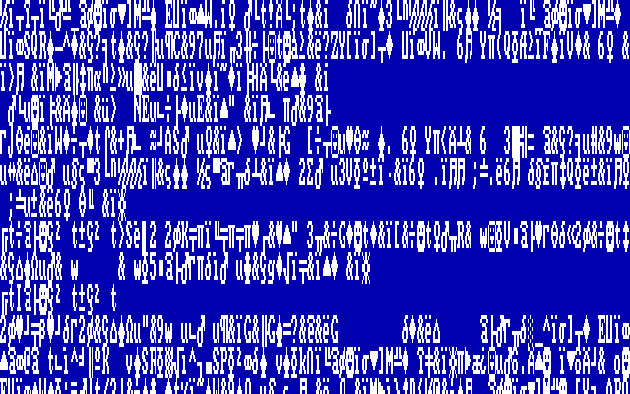
The earliest blue screen of death was encountered upon booting into Windows 1.0, and subsequently Windows 2.0, and consisted of seemingly random data ("mess") composed of code page 437 symbols, presented against a blue background.When Windows 1.0 encountered any MS-DOS related critical system errors, it displayed a black screen of death instead.


Windows 3.x, 95, 98, and ME


The first blue screen that resembled an error screen was in the Windows 3.x series. Similar error screens appeared in Windows 95, Windows 98 and Windows ME. These presented an error message against an all-blue background, in 80-column 25-line text mode. The error screen was displayed when there was a critical startup error (such as accessing a hardware driver file that no longer existed), or in the case of some other serious fault such as an unhandled error occurring inside a VxD hardware driver file. The BSOD also occurred during system use if a device driver had to present a modal dialog to the user, such as where a removable disk was removed from the drive whilst a file was being read or written.


During a demonstration of a beta version of Windows 98 by Microsoft's Bill Gates, at COMDEX on April 20, 1998, a BSOD incident occurred in public. The computer crashed with a blue screen when his assistant (Chris Capossela, currently Microsoft's Chief Marketing Officer) connected a scanner to demonstrate Windows 98's support for Plug and Play devices. This brought applause from the crowd, and Gates replied after a pause: "That must be... er... that must be why we're not shipping Windows 98 yet!"


Windows NT family


In Windows NT-based operating systems, the Stop error occurs when the kernel, or a driver running in kernel mode, encounters any error from which it cannot recover. This is usually caused by an illegal operation being performed, where the only safe action the operating system can take is to restart the computer. As a result data may be lost, since the user is not given an opportunity to save any unsaved data to disk.


The text on the error screen contains an error code along, four other codes whose meanings depend on the error code itself, and an error name. Depending on the error code, it may display the memory address at which the problem occurred, together with identifying details of the driver file loaded at that address. Under Windows NT and 2000, the second and third sections of the screen may list all the currently-loaded drivers and display all memory data (a "stack dump"), respectively. The driver information will list the disk address of the driver file, the file's creation date (as a Unix timestamp), and the name of the file.


By default, Windows NT based systems create a memory dump file when a Stop error occurs. Depending on the operating system version, this can range from a 64 kB mini-dump to a complete dump of memory that saves the entire active contents of the RAM. The resulting file can thus be analyzed later. A kernel debugger software program may be used in order to obtain a stack trace (identifying certain memory information) to find the true cause of the error, as the on-screen information is limited and may conceal the true cause.


A Stop error can also be caused by a critical boot loader error, where the operating system is unable to start from the bootable drive due to the presence of an incorrect disk driver, a damaged file system, or a similar problem. In such cases no memory dump is saved. Stop errors in Windows Vista are rarer than any other Windows Operating System. This is because of the unique way the operating system handles Stop errors. The operating system shuts down completely, then on rebooting shows an error box with an error code. This usually happens when a driver is the problem.


Blue screen of death in Windows 8


A new version of the error screen has been seen in the developer preview of Windows 8, released in September 2011. Rather than displaying detailed technical information about the error, it simply displays a short explanation that the system needs to restart, the technical name of the error and a sad emoticon. Also it contains a lighter shade of blue in the background.


Blue Screen of Death (photo by Sean Galbraith)
For the last few days, the four giant display "screens" at The Bay, Toronto have been crashed. Could this be the world's largest BSOD?
This photo, taken last night, suggests that someone finally got to the source and fixed it.


Wednesday, 29 February 2012

PC Maintenance Class 16


This is the class we missed....we'll have a catchup class tagged on at the end of the term before Easter!

Wednesday, 8 February 2012

PC Maintenance Class 15

Tonight's class was a hardware practical session.  For the first time ever in PC Maintenance, our first midi-tower shaped PC. The group had quite a good session at dismantling the computer and reassembling it.


Here are a selection of pictures from the session: